> For the complete documentation index, see [llms.txt](https://docs.hackle.io/llms.txt). Markdown versions of documentation pages are available by appending `.md` to page URLs; this page is available as [Markdown](https://docs.hackle.io/external-link/slack-integration.md).
# Slack 연동
A/B 테스트, 기능플래그, Remote Config의 상태 혹은 타겟팅/트래픽 설정 업데이트를 슬랙 메시지로 확인할 수 있습니다.
{% hint style="info" %}
**Slack 은 운영환경/개발환경 각각 독립적으로 연동이 가능합니다.**
* 워크스페이스의 운영환경 = 1 Channel
* 워크스페이스의 개발환경 = 1 Channel
{% endhint %}
### **연동하기**
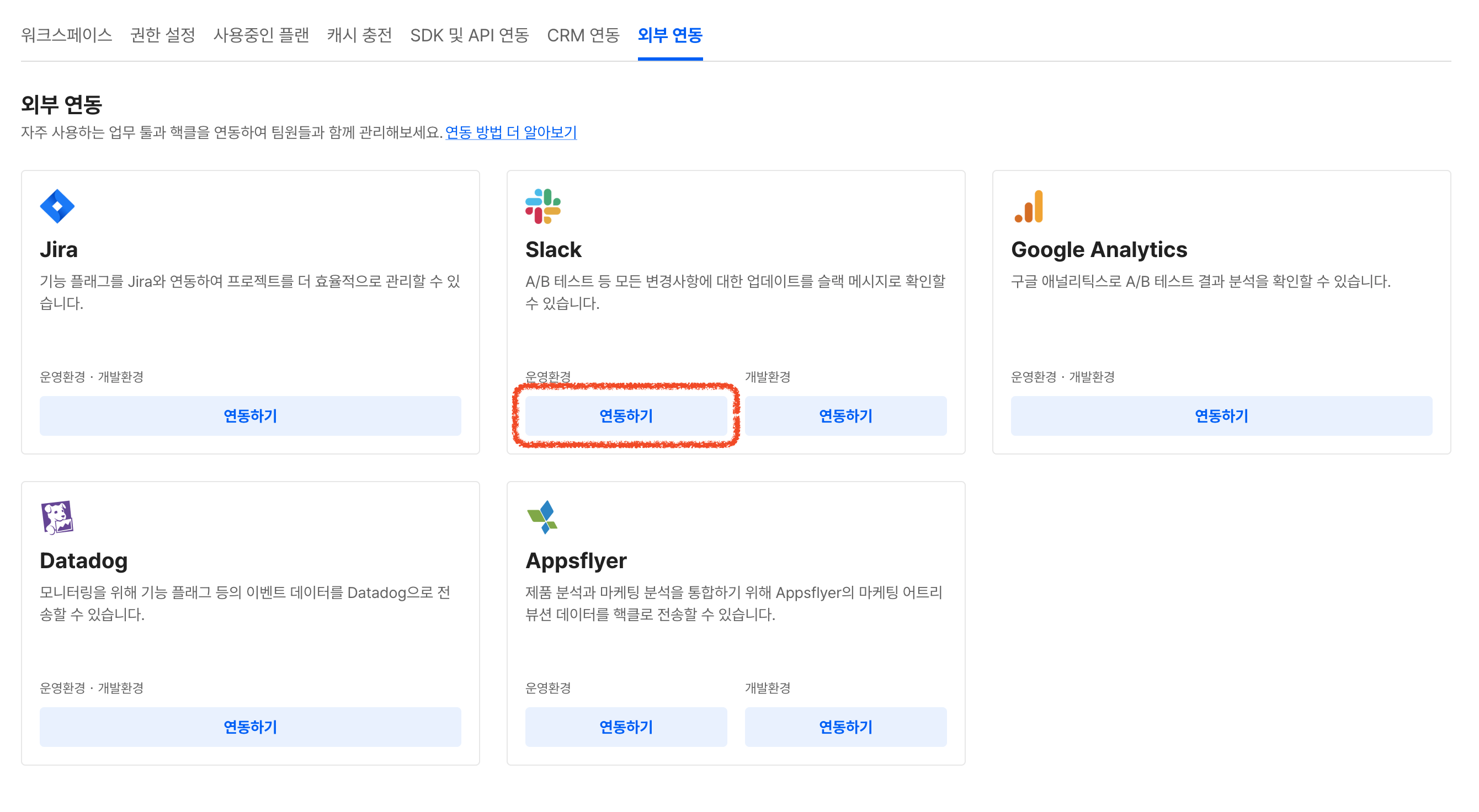
1. 핵클 대시보드의 워크스페이스 설정 > 외부 연동 화면에 접속해주세요. ([링크](https://dashboard.hackle.io/config/integrations))
2. 외부 연동 탭에서 Slack을 찾아 연동하기 버튼을 클릭하세요.
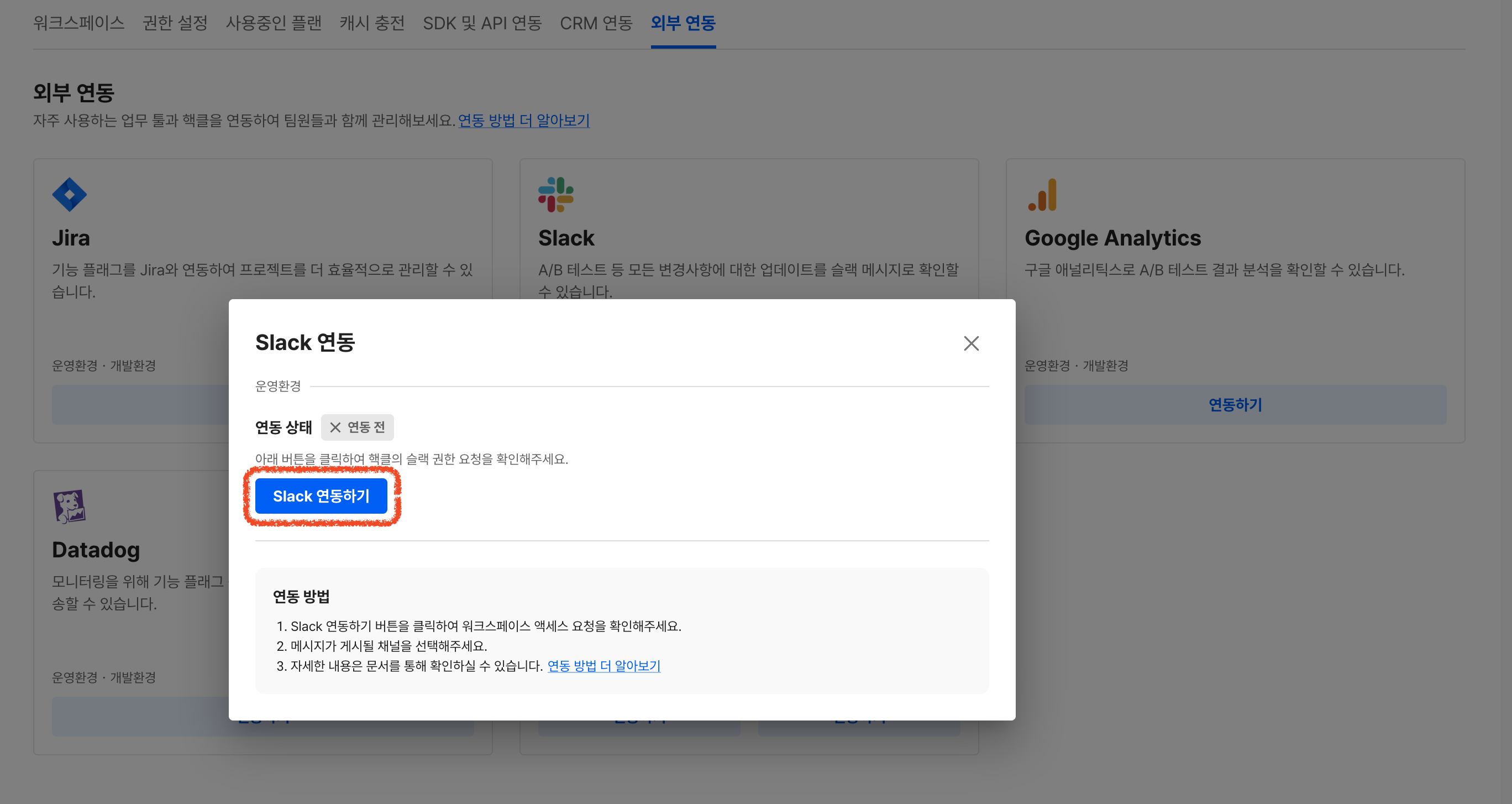
3. 모달에서 Slack 연동하기 버튼을 클릭하세요.
4. Hackle Slack App에서 보내는 메시지를 수신할 Slack 채널을 선택한 뒤 허용을 눌러주세요.


### **Slack 연동 확인**
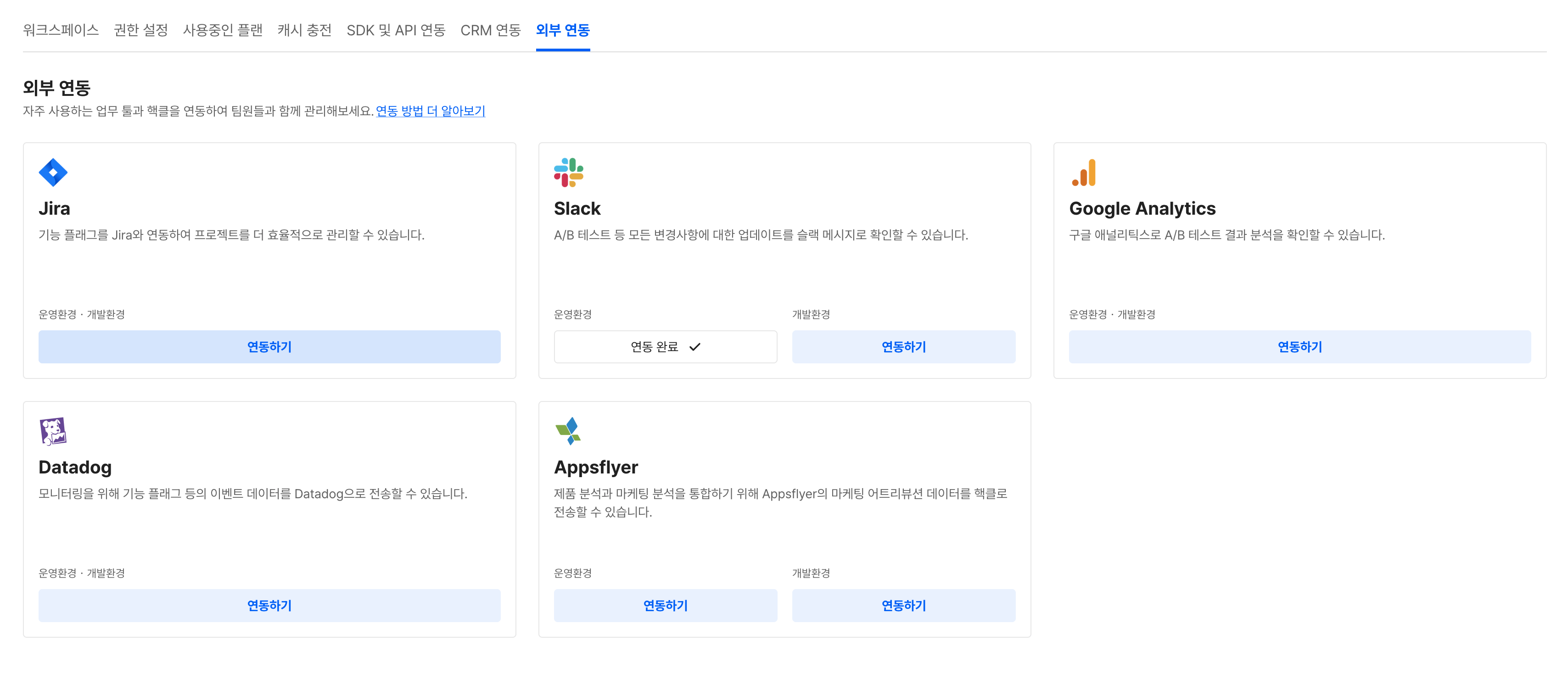
Slack 채널을 선택 후 허용을 누른 이후 성공적으로 연동되었을 경우 아래의 화면으로 리다이렉트됩니다.

### **연동 이후 다른 채널로 Slack 연동하기**
위에서 언급했듯이 하나의 채널로만 연동이 가능합니다.
다른 채널로 Slack 메시지를 보내고 싶다면 아래의 버튼을 눌러 새 채널로의 연동을 진행하시면 됩니다.
이 경우, 기존에 연결되어 있던 채널로는 더 이상 메시지가 전송되지 않습니다.

### **Slack 연동 해제하기**
* Slack에서 제공해주는 [App 제거 가이드](https://slack.com/intl/ko-kr/help/articles/360003125231-%EC%9B%8C%ED%81%AC%EC%8A%A4%ED%8E%98%EC%9D%B4%EC%8A%A4%EC%97%90%EC%84%9C-%EC%95%B1-%EB%B0%8F-%EC%82%AC%EC%9A%A9%EC%9E%90-%EC%A7%80%EC%A0%95-%ED%86%B5%ED%95%A9-%EC%A0%9C%EA%B1%B0)에 따라 Hackle Slack App을 제거합니다.
* 더 이상 메시지는 전송되지 않으나, 대시보드 외부 연동 탭에서는 연동 완료 상태로 남아있을 수 있습니다.
---
# Agent Instructions
This documentation is published with GitBook. GitBook is the documentation platform designed so that both humans and AI agents can read, navigate, and reason over technical content effectively. Learn more at gitbook.com.
## Querying This Documentation
If you need additional information that is not directly available in this page, you can query the documentation dynamically by asking a question.
Perform an HTTP GET request on the current page URL with the `ask` query parameter, and the optional `goal` query parameter:
```
GET https://docs.hackle.io/external-link/slack-integration.md?ask=&goal=
```
`ask` is the immediate question: it should be specific, self-contained, and written in natural language.
`goal` is optional and describes the broader end goal you are ultimately trying to accomplish on behalf of the user. GitBook uses it to tailor the answer towards what is most useful for that goal.
The response will contain a direct answer to the question and relevant excerpts and sources from the documentation.
Use this mechanism when the answer is not explicitly present in the current page, you need clarification or additional context, or you want to retrieve related documentation sections.