# Parameter Settings

When app developers create and release new features, they need to check user reactions and prepare for unexpected situations.\
Using Feature Flag parameters, you can gradually apply flexible results to users.

For example, if you want to see user reactions to specific copy or receive feedback, you can apply the feature to 10% of the user base and configure parameters for the copy you want to change dynamically.\
By changing the configured parameter values or adjusting traffic, you can check the performance and response of the feature and then fully apply it to all users.

## Examples

#### 1. **Defining Announcement Popups and Promotion Banners**

Using Feature Flag parameters, you can dynamically display and change event/promotion banner copy on web pages and apps by setting the desired values.

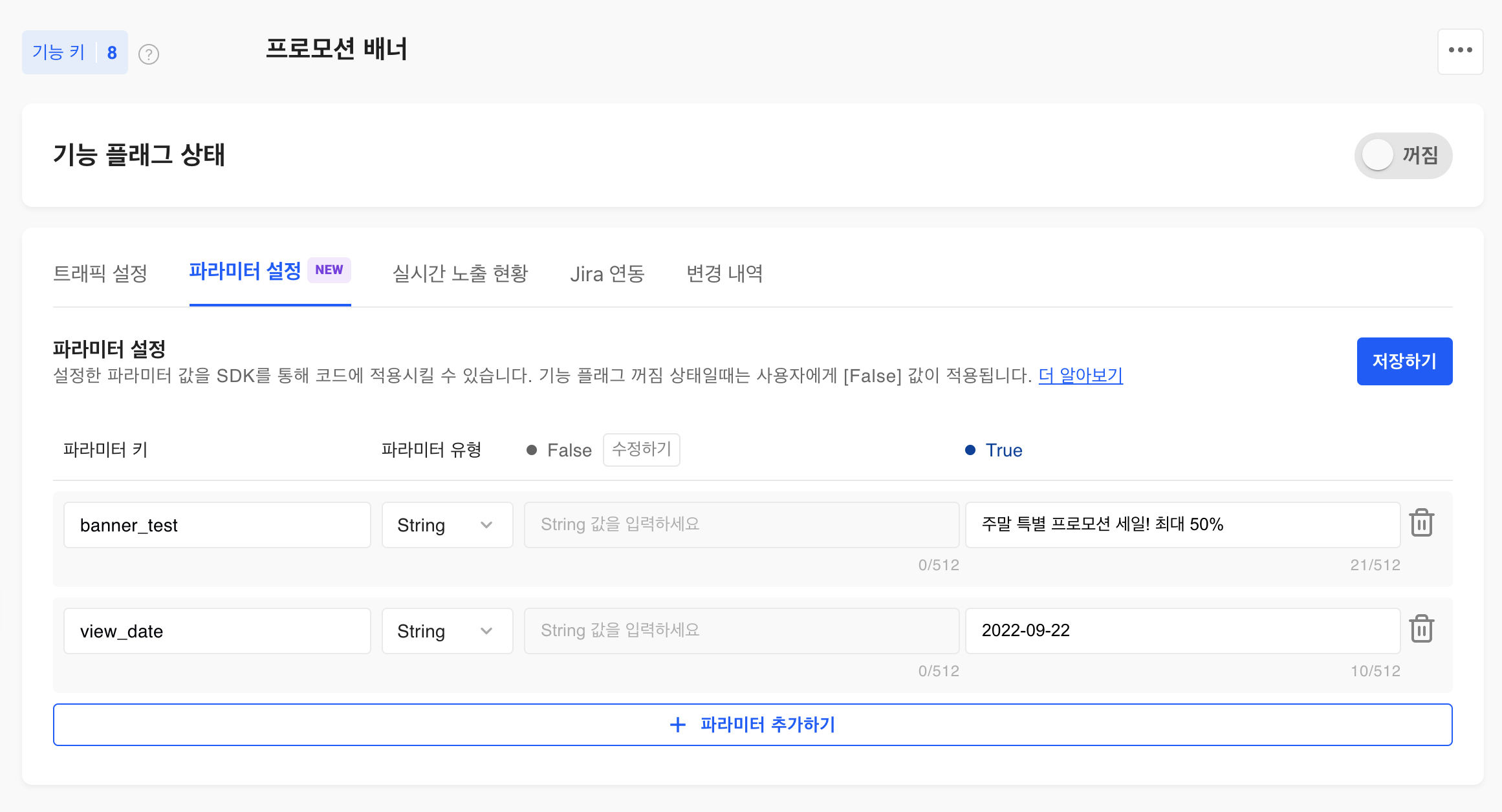
Suppose you need to re-display or change a one-time popup or referral text by date and language. You can set user groups by language in the User Targeting rules, and configure parameter key-value pairs for the banner copy (parameter key: `banner_text`, value: "Banner text") and the display date (parameter key: `view_date`, value: `"2022-09-22"`).

If you want to change the copy, you can modify the parameter value. When you no longer want to display the popup after a certain date, you can change the Feature Flag status to off to revert to the configured default value (False).

<figure><img src="/files/kZzWBny3vLL3Y7mz9xII" alt=""><figcaption></figcaption></figure>

#### **2. In-game Attribute Application or Feature Testing for Specific Users**

Using Feature Flag parameters within a game, you can control a variety of content applied at runtime to an unspecified number of users. You can apply specific events to some players, change item acquisition rates, or adjust game difficulty to provide diverse experiences to players within the game.

For example, suppose a Feature Flag is applied to control "whether gems are awarded upon clearing a specific quest" in the game. In this case, after observing the reactions of users who receive gems, a situation may arise where the gem amount needs to be adjusted because it is too high or too low.\
In this case, if the gem amount is already configured as a Feature Flag parameter, you can change the value dynamically without a separate app deployment, and it will be immediately reflected in the game.

Beyond this, you can test features or apply changes to various attributes and configuration values in the game, such as difficulty level and item acquisition rates.

![2364](/files/gwYClLSdInbmSBvyU9nS)

## Policy

1. **When you can configure it**\
   You can configure or change the settings at any time.\
   (However, when the Feature Flag in the Production Environment is in the on state, parameters cannot be deleted.)
2. **When changes take effect**\
   Note that changes are applied to users immediately upon saving, depending on the Feature Flag status.

* When the Feature Flag is in the off state, the **`False`** value is applied to users.
* When the Feature Flag is in the on state, all **`True`** and **`False`** settings are applied to users.

3. **Environment**\
   Can be configured separately in the **`Production Environment`** and **`Development Environment`**.

## Configuring Parameters in the Dashboard

Configuration is available in the Parameter Settings tab of the Feature Flag detail screen.\
Click the **`Save`** button in the upper right corner to save your changes.

![Parameter Settings](/files/gvEyx5SJ6GFg3XndBZjB)

<table><thead><tr><th width="119.91015625">Item</th><th width="251.02734375">Condition</th><th>Description</th></tr></thead><tbody><tr><td><strong>Parameter Key</strong></td><td>Required</td><td>Only letters, numbers, <code>_</code>, <code>-</code>, <code>.</code> are allowed<br>Length limit: 1~128 characters<br>No duplicates within the same Feature Flag</td></tr><tr><td><strong>Parameter Type</strong></td><td><code>String</code> <code>Number</code> <code>Boolean</code> <code>JSON</code></td><td>Select the parameter type to set values.</td></tr><tr><td><strong>Parameter Value</strong></td><td>False / True</td><td>Based on the selected parameter type, you can set desired values for [False] and [True] respectively.<br>Use the <strong><code>Edit</code></strong> button on the right of [False] to modify the value, and changes take effect immediately.</td></tr></tbody></table>

{% hint style="info" %}
By using the configured parameter key to call the Feature Flag in code, you can get the parameter value.

Click **`Add Parameter`** to add up to **10** parameters.
{% endhint %}

{% hint style="warning" %}
Once saved, the parameter key and type cannot be modified.
{% endhint %}


---

# Agent Instructions: Querying This Documentation

If you need additional information that is not directly available in this page, you can query the documentation dynamically by asking a question.

Perform an HTTP GET request on the current page URL with the `ask` query parameter:

```
GET https://docs.hackle.io/en/feature-flag/create-and-configure/parameter-settings.md?ask=<question>
```

The question should be specific, self-contained, and written in natural language.
The response will contain a direct answer to the question and relevant excerpts and sources from the documentation.

Use this mechanism when the answer is not explicitly present in the current page, you need clarification or additional context, or you want to retrieve related documentation sections.
