> For the complete documentation index, see [llms.txt](https://docs.hackle.io/llms.txt). Markdown versions of documentation pages are available by appending `.md` to page URLs; this page is available as [Markdown](https://docs.hackle.io/en/development-guide/android/android-user-explorer.md).
# User Explorer
{% hint style="info" %}
**Recommended for Debug builds only**
{% endhint %}
{% hint style="warning" %}
The User Explorer is not available in remote evaluation mode.
{% endhint %}
This guide explains how to check User Identifiers and force-assign users to A/B Tests and Feature Flags.
Add the following code.
```java
@Override
public void onCreate(Bundle savedInstanceState) {
//...
hackleApp.showUserExplorer();
//...
}
```
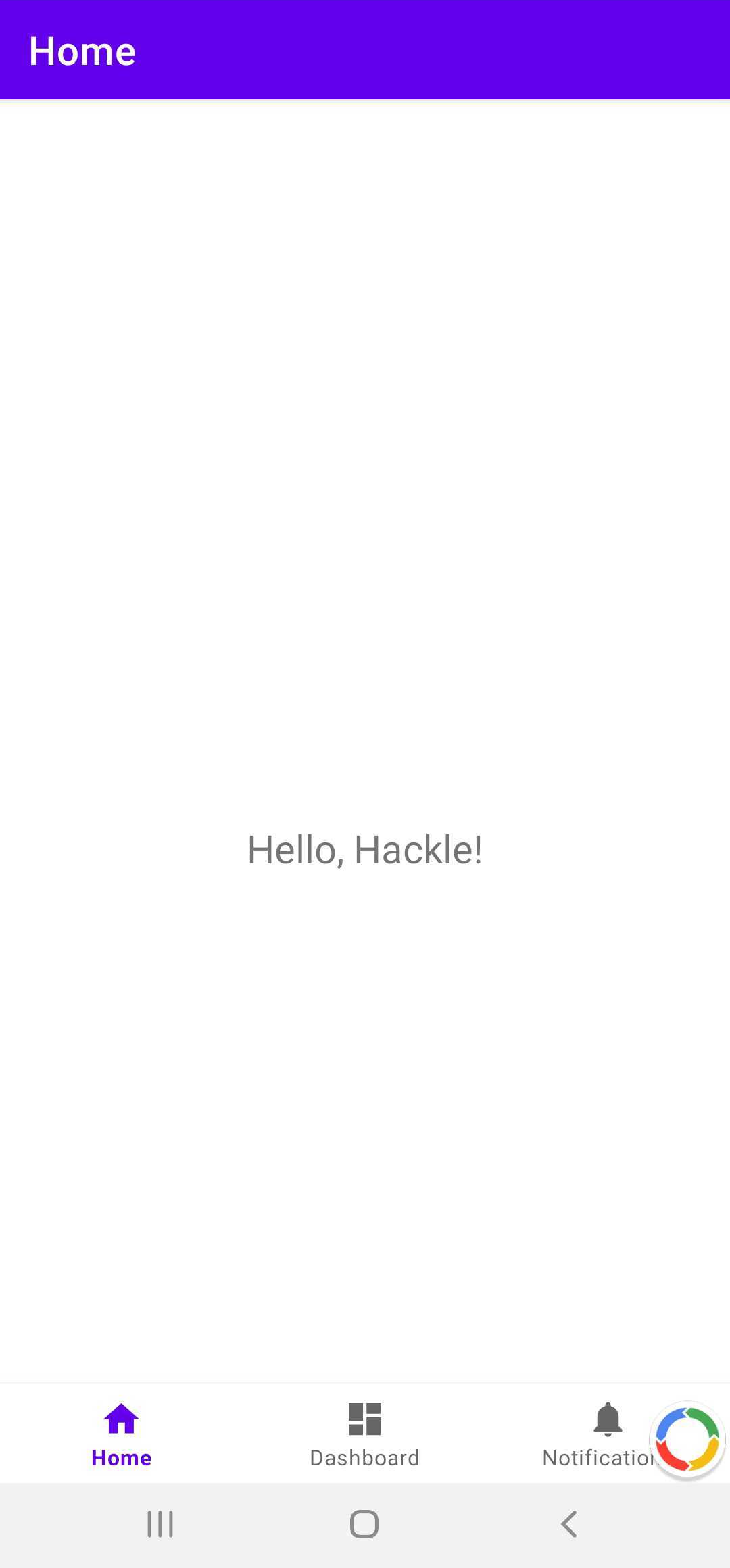
A Hackle logo button is displayed at the bottom of the screen. Clicking the button takes you to the settings screen.
## Check User Identifier
You can view and copy the User Identifier at the top of the screen.
If the SDK version supports Push Messages, you can also view the push token information for this device.

## Force Assignment
* You can view the distribution results for A/B Tests and Feature Flags at the bottom of the screen.
* Click a SelectBox to force-assign to a specific variation.
* Click the `RESET` button to remove the force assignment.
* Click `RESET ALL` to remove all force assignments.
* Force assignments made in the app only apply when distribution is performed in the app. (They are not registered as Test Devices in the Dashboard.)
* If a force assignment is not applied, fully close the app and relaunch it.


---
# Agent Instructions
This documentation is published with GitBook. GitBook is the documentation platform designed so that both humans and AI agents can read, navigate, and reason over technical content effectively. Learn more at gitbook.com.
## Querying This Documentation
If you need additional information that is not directly available in this page, you can query the documentation dynamically by asking a question.
Perform an HTTP GET request on the current page URL with the `ask` query parameter, and the optional `goal` query parameter:
```
GET https://docs.hackle.io/en/development-guide/android/android-user-explorer.md?ask=&goal=
```
`ask` is the immediate question: it should be specific, self-contained, and written in natural language.
`goal` is optional and describes the broader end goal you are ultimately trying to accomplish on behalf of the user. GitBook uses it to tailor the answer towards what is most useful for that goal.
The response will contain a direct answer to the question and relevant excerpts and sources from the documentation.
Use this mechanism when the answer is not explicitly present in the current page, you need clarification or additional context, or you want to retrieve related documentation sections.