# Send Webhooks

## Create Webhook

You can create a new webhook campaign by clicking the **`+ Create Campaign`** button located in the upper right corner of the **Webhook** menu in the Dashboard.

![](/files/wExRYddiqc8zVhwTzCPj)

### Step 1. Campaign Settings

Once a campaign is created, you can view the campaign key, title, description, and status.

* Campaign Key: A unique value that distinguishes the campaign. It can be used to extract users who were exposed to a specific campaign.
* Campaign Title / Description: You can edit the title and description.
* Campaign Status: When you first create a campaign, it is in the 'Ready' state. Afterwards, you can start the campaign after configuring the campaign content. To modify an ongoing campaign, you must change it to the paused state, and if you no longer want to run the campaign, you can end it.

![Campaign status](/files/CPp8kwOgxxLnZPjFtZkT)

### Step 2. Webhook Settings

#### 2-1. Required Field Settings

You can check the API required for KakaoTalk and text message sending by contacting the messaging provider you are using.

![](/files/SgRAIV5ammTQydAMDEWJ)

* URL (Required)\
  The URL to receive the webhook. This field is required, and webhook events will be delivered to this URL. HTTPS protocol is required.
* Method\
  The HTTP Method to use when receiving the webhook. GET, POST, PUT, PATCH, and DELETE are supported.
* Parameters\
  Query parameters included in the webhook request URL. Entered as Key-Value pairs, used to transmit information such as user ID or event type.
* Headers\
  Additional data transmitted with the webhook request. Entered as Key-Value pairs, used to transmit authentication tokens or configuration information.\
  By default, all webhook requests include the Content-Type: application/json header, and this header cannot be changed. Additional headers can be configured as needed.
* Body\
  The HTTP Body to transmit with the webhook request. GET requests cannot use a Body. The Body is encoded in UTF-8 by default.

#### 2-2. Personalization Settings

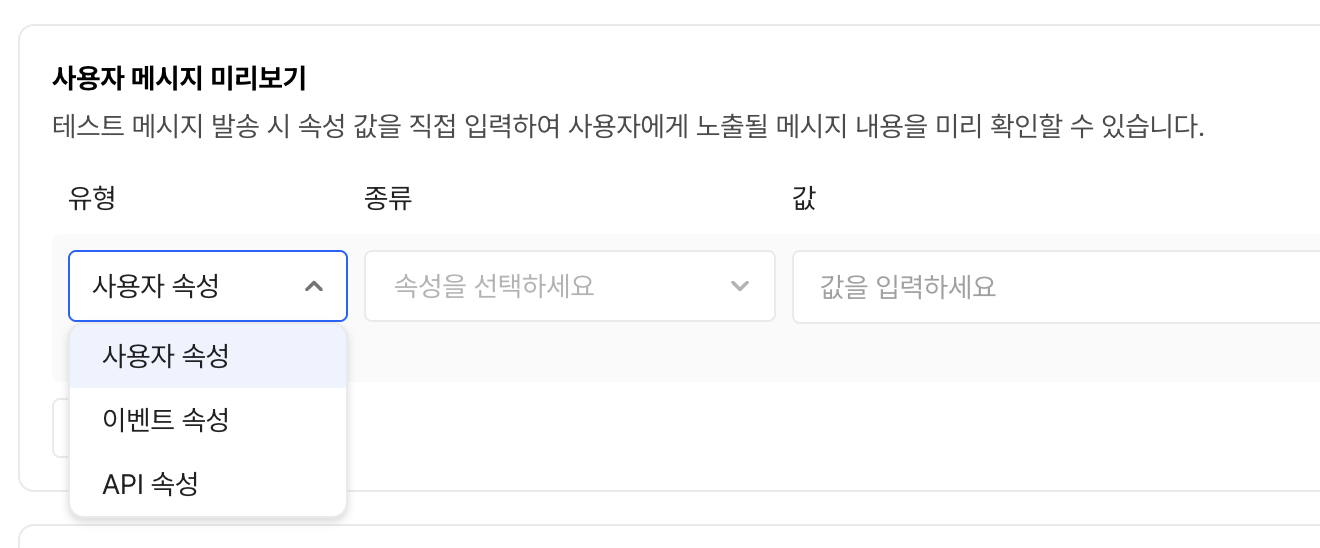
1. Click {...} to write personalized messages.
2. In the \[Add Personalization Variable] modal, you can select event properties and user properties, and set a fallback text to display if no value is available for each property. For example, if you select the property value "account\_name", the user's name "John Doe" will be displayed, and if no name is available, the fallback text you entered will appear.

![](/files/Q6JQKCC8fPxb8QFCDQIo)

#### 2-3. Target Settings

* You can target the campaign by specifying a cohort. Set up the desired cohort using various events/properties. For usage instructions, see the [Create Cohort](/en/cohort/create.md) document.
* If there are no issues with the preview and you have configured the campaign target, click Save to proceed to the next step.

### Step 3. Review Webhook Content

You can check the summary information of the written webhook. You can view it in both cURL format and table format.

![View as cURL](/files/yTcgsr3EcFaAaYyvvlMX)

![View as table](/files/U3il5G6l98GXw64e93SF)

### Step 4. Test Send

Before starting the webhook, you can test it from Hackle to verify that the request is in the correct format.

![](/files/GJRCilhryCXJQrqLrNXO)

1. Click the \[Send Test Message] button to send a test webhook.
2. In the modal that appears after sending the test webhook, you can check the send status and Response information.
3. If sending failed, you can check the error message in the send status.\
   For detailed descriptions of error messages, refer to the [Retry on Request Failure](#undefined-3) section.

![Send Test Message modal](/files/up94xFwfmoHTniV2exfh)

### Step 5. Start

#### 5-1. Select Send Type

Hackle provides three send types. Select the send type based on the nature of your message.

<table><thead><tr><th width="169.5703125">Send Type</th><th>Description</th></tr></thead><tbody><tr><td>Schedule-based Send</td><td>Sends the message at the desired date and time.</td></tr><tr><td>Event-based Send</td><td>Sends the message when a user performs a specific action. Based on the user's behavioral data.</td></tr><tr><td>API-based Send</td><td>(Coming soon) Sends the message based on API content you configure directly. Sent at the point when the internal server requests message transmission.</td></tr></tbody></table>

#### 5-2. Customer Fatigue Management

Excessive notifications can become a burden and nuisance for customers, and can be a cause of service churn.

If you are running multiple campaigns, you can use customer fatigue management to set the number and frequency of messages sent to specific customers within a given period.

![](/files/zLYqQhqJ4CCloa4qqriZ)

#### Duplicate Send

* By default, the same campaign is sent only once to the same user.
* If you want to send duplicate messages, you can set the period before resending after the initial send in minutes, hours, days, weeks, or months to minimize negative customer experience.

#### Frequency Capping

* You can limit the number of CRM messages an individual user can receive during a certain period. *(\*Based on send start time)*
* The total Frequency Capping can be set at the workspace level, and you can choose whether to apply the limit per push message and webhook campaign.
* You can configure this by clicking the `**Frequency Capping Settings**` button in the Push Message and Webhook menus in the Hackle Dashboard.

![](/files/zonjw6s0K8I7p31cBBsA)

* If no value is set, no Frequency Capping is applied. When Frequency Capping is set, the same settings apply to all campaigns with Frequency Capping configured at the time of campaign setup.
* You can check the details in the [Frequency Capping](/en/crm-marketing/push-message-guide/send/frequency-capping.md) document.

## Retry on Request Failure

When an API send request fails, whether to retry the request is determined based on the response. Detailed information is as follows:

| Response Code | Detail          | Retry |
| ------------- | --------------- | ----- |
| 2XX           | Success         | X     |
| 30X           | Redirected      | X     |
| 408           | Request Timeout | O     |
| 429           | Rate Limited    | O     |
| 4xx           | Client Error    | X     |
| 5xx           | Internal Error  | O     |

For retry targets, the request is retried up to 3 times using exponential backoff with a maximum of 10 seconds.


---

# Agent Instructions: Querying This Documentation

If you need additional information that is not directly available in this page, you can query the documentation dynamically by asking a question.

Perform an HTTP GET request on the current page URL with the `ask` query parameter:

```
GET https://docs.hackle.io/en/crm-marketing/webhook-guide/send-webhook.md?ask=<question>
```

The question should be specific, self-contained, and written in natural language.
The response will contain a direct answer to the question and relevant excerpts and sources from the documentation.

Use this mechanism when the answer is not explicitly present in the current page, you need clarification or additional context, or you want to retrieve related documentation sections.
