> For the complete documentation index, see [llms.txt](https://docs.hackle.io/llms.txt). Markdown versions of documentation pages are available by appending `.md` to page URLs; this page is available as [Markdown](https://docs.hackle.io/en/crm-marketing/user-journey-guide/create-user-journey.md).
# Create a User Journey
This page explains how to set up the basics of a user journey.
For various other ways to use user journeys, see [User Journey Examples](/en/crm-marketing/user-journey-guide/example.md).
{% stepper %}
{% step %}
### **Create a User Journey**
You can create a new User Journey by clicking the **`+ Create Campaign`** button located in the upper right corner of the **`User Journey`** menu in the Dashboard.

#### **Configure the User Journey**

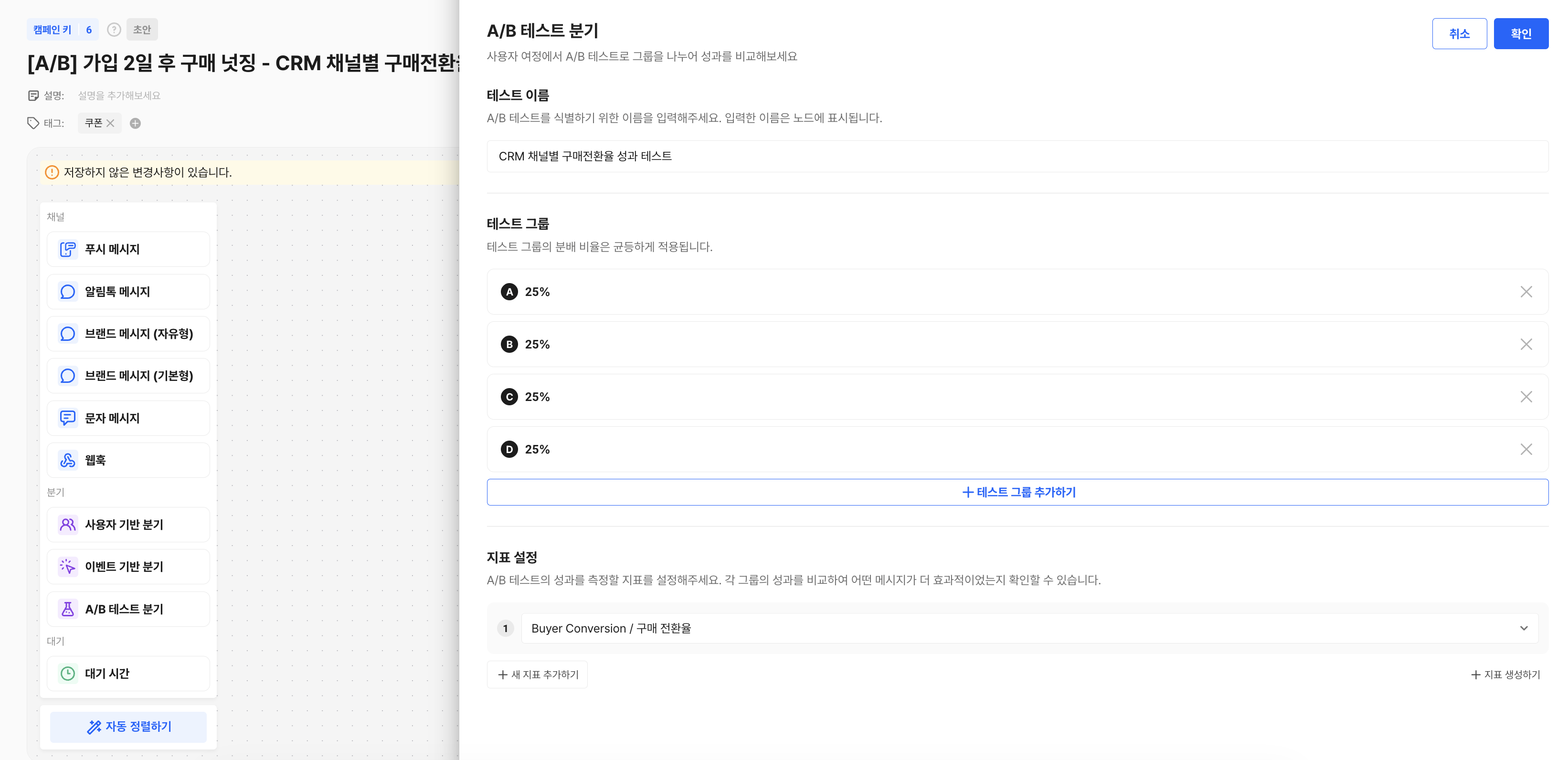
1. Panel: You can add steps by directly dragging and dropping the desired nodes
2. Auto Arrange: Clicking this automatically arranges the added items on the screen.
3. User Journey Settings: Basic settings for the journey.
{% hint style="info" %}
#### Screen Navigation Guide
* Scroll: Move up and down
* Drag: Move the canvas
* command / ctrl + mouse wheel: Zoom in / out
* Pinch / spread on the trackpad: Zoom in / out
{% endhint %}
#### **Set Up the User Journey**
After selecting a desired node from the panel and dragging it to add it, you can connect nodes by dragging the circle at the bottom of each node.

Clicking on an item opens the detail screen. Complete the required settings for each item.

{% endstep %}
{% step %}
### **Set Target, Entry & Exit Conditions**
You must complete the required basic settings to start the User Journey.


#### **Target**
You can configure which users will enter the journey. You can select users who satisfy specific properties or users who belong to a specific cohort.
#### **Entry Conditions**
The journey begins when a user performs a specific action or meets a condition. For example, the journey can start automatically when a user registers for the service or visits a specific page.
* Up to 10 entry events can be added.
* The journey starts immediately when an entry event occurs.
* The journey proceeds for users who satisfy the conditions within the configured period.
#### **Exit Conditions (Optional)**
A user exits the journey when they meet a specific condition. For example, users are removed from the journey when they complete a target action (purchase, click, etc.) or when there is no response for a certain period.
{% endstep %}
{% step %}
### Channels
A channel node is the step that delivers an actual message or request to the user. Choose the channel that fits your goal, and configure the send content required for each channel.
{% tabs %}
{% tab title="Push Message" icon="message-dot" %}
In the Push Message node, you configure the platform to send to and the message content.
* You can enter the title, body, image, and deep link.
* You can check how it will actually appear using personalized text and the preview.
* You can verify the message on a device in advance with a test send.
For detailed settings, see [Creating a Push Message Campaign](/en/crm-marketing/push-message-guide/create-campaign.md).
{% endtab %}
{% tab title="Alimtalk Message" icon="message-smile" %}
In the Alimtalk Message node, you select an approved template and connect variables.
* Select a template, then map the personalization variables.
* You can check the substitution result with the user message preview.
* You can check the actual received screen with a test send.
* If you apply a tracking link, you can measure message clicks.
For detailed settings, see [Writing a Kakao Alimtalk](/en/crm-marketing/kakao-message-guide/alimtalk.md).
{% endtab %}
{% tab title="Brand Message" icon="message-dots" %}
In the Brand Message node, you configure promotional messages based on a Kakao channel.
* Select a template after meeting the send conditions.
* You can build a customized message by connecting personalization variables.
* To send Brand Messages (basic type), please apply separately for [Brand Message Targeting](https://dashboard.hackle.io/workspaces/115054/config/platform-integrations?tab=KAKAOTALK_CHANNEL).
* If you apply a tracking link, you can measure message clicks.
For detailed settings, see [Writing a Kakao Brand Message](/en/crm-marketing/kakao-message-guide/brand-message-targeting.md).
{% endtab %}
{% tab title="Text Message" icon="message-sms" %}
In the Text Message node, you configure both the sender information and the message type.
* Check the sender number and the opt-out number.
* Select the type that fits your goal among SMS, LMS, and MMS.
* You can configure advertising text and personalization variables.
For detailed settings, see [Writing a Text Message](/en/crm-marketing/sms/send-text-message.md).
{% endtab %}
{% tab title="Webhook" icon="webhook" %}
In the Webhook node, you configure the conditions for sending a request to an external system.
* Enter the URL, Method, Parameters, Headers, and Body.
* You can personalize the request values with user properties or event properties.
* You can immediately check the response result with a test send.
For detailed settings, see [Sending Webhooks](/en/crm-marketing/webhook-guide/send-webhook.md).
{% endtab %}
{% endtabs %}
#### **Branch Based on Send Results**
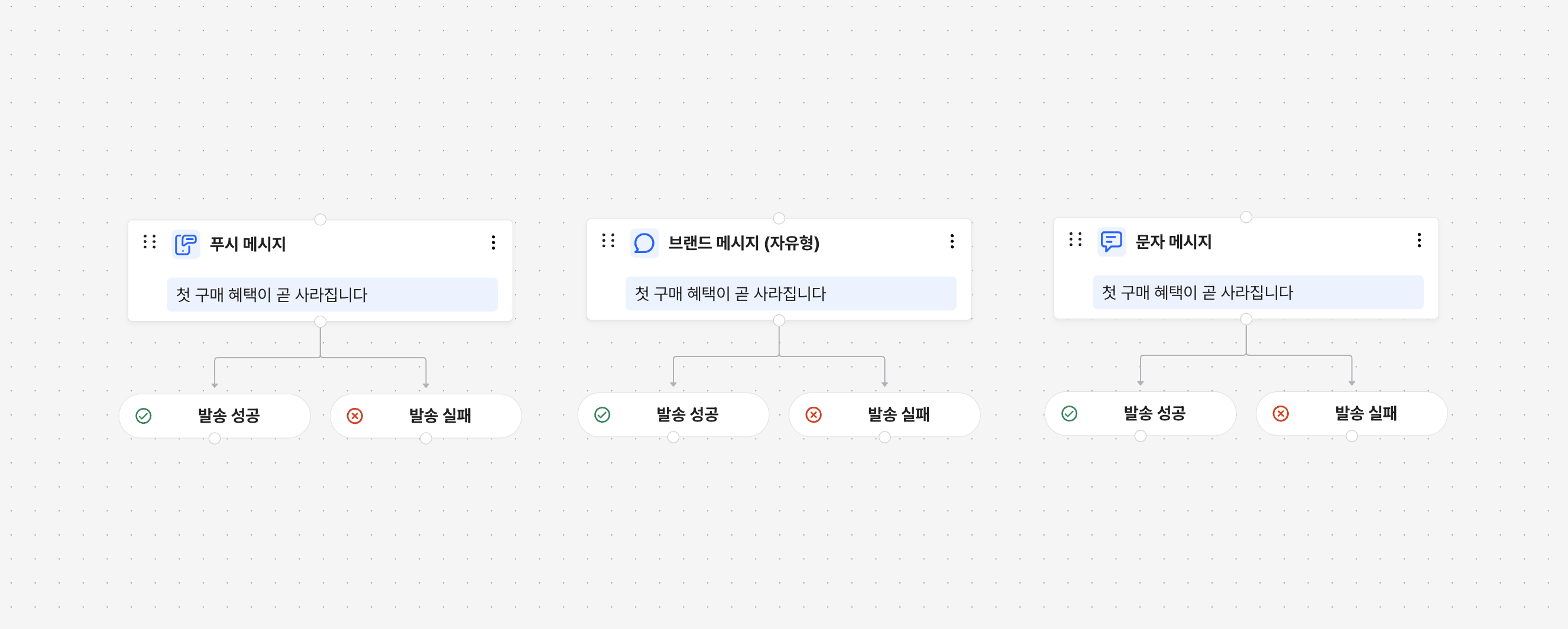
For messages, you can split branches based on the send result to configure the user's next journey. Messages may not be delivered for reasons such as the following.
**Send Failure Reasons**
* When the send is requested during restricted sending hours (common)
| Push Message | Kakao Message | Text Message |
| ---------------------------------- | -------------------------------------------- | -------------------------------------------- |
| When the push token does not exist | When the phone number has not been collected | When the phone number has not been collected |
| When the push token has expired | When there is insufficient balance | When there is insufficient balance |
| | When not a channel friend | |
| {% endstep %} | | |
{% step %}
### Branches
A branch is a feature that splits paths based on specific conditions in the User Journey. This allows you to provide customized experiences based on user behavior, attributes, and whether specific events have occurred.

A/B test-based branch
{% hint style="info" %}
You can set a name for each branched group. Modify the group name to more easily understand campaign performance.
{% endhint %}
#### **User-based Branch**
Branches paths based on user attributes (e.g., registration date, region, purchase history, etc.). For example, you can send different messages to VIP customers and regular customers.

#### **Event-based Branch**
Branches the journey based on specific user actions (e.g., button click, add to cart, etc.). For example, you can send different messages to users who made a purchase and those who did not.

#### **A/B Test-based Branch**
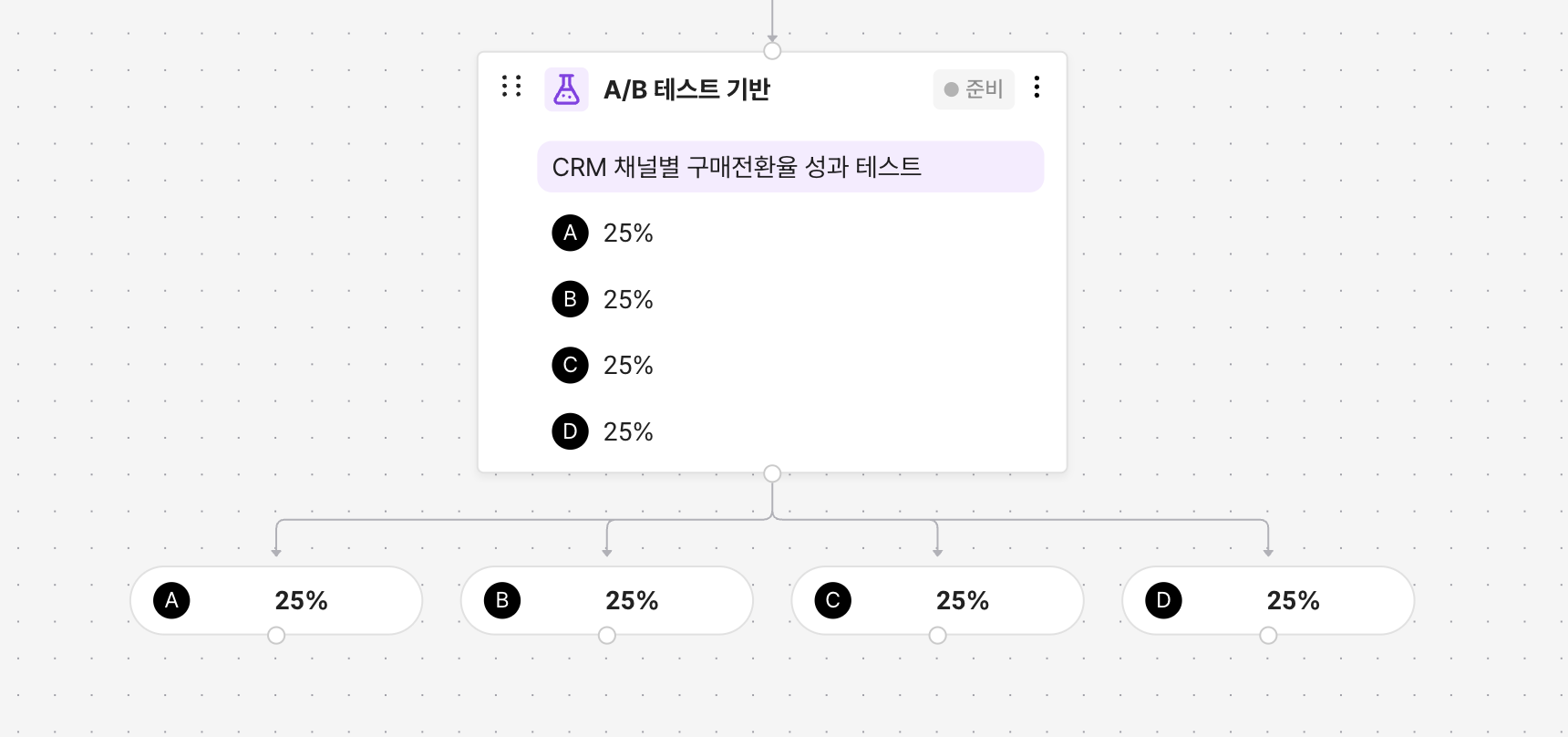
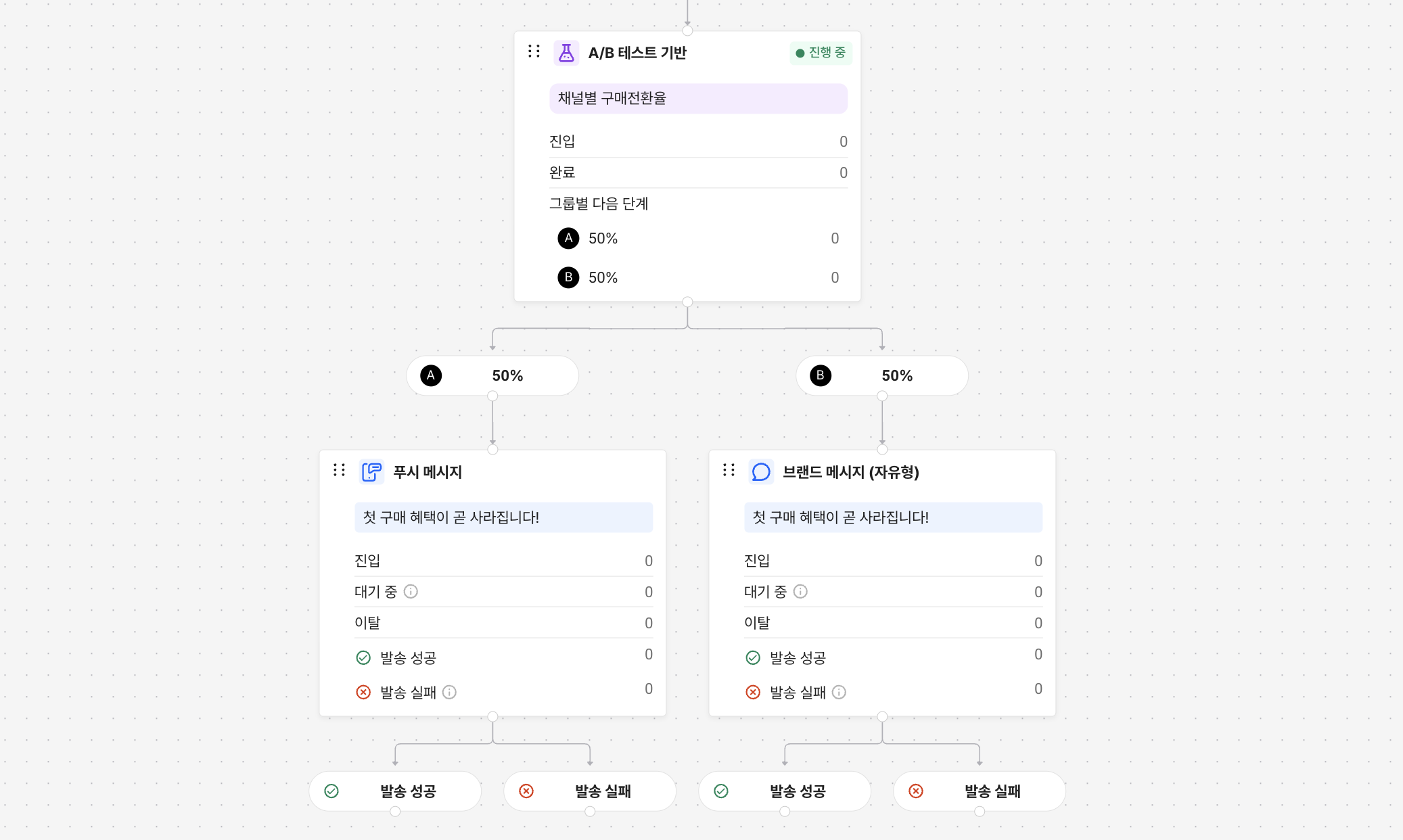
You can run an A/B test on users who enter the branch. Users are evenly distributed across each group, and you can connect a different message or action to each group. Set metrics to measure the performance of the A/B test.
**Starting the A/B Test**
When the journey starts, the A/B test also starts together, and you can check the A/B test progress and metric data on the detail screen.
**Ending the A/B Test**
The ways to end an A/B test node's experiment in a journey are as follows.
1. **End at the individual test node**
You can end it at any time, independently of the journey's status. On the A/B test detail screen, click \[End] to review the test results and then end it.
2. **End the journey**
When the journey ends, all tests included in the journey also end together. In the end modal, you can review the experiment results of every A/B test node individually and then end them all at once.
{% hint style="info" icon="lightbulb" %}
#### Try using it like this!
* **Channel comparison**: Verify which channel responds better
* Alimtalk vs Push vs Text
* **Send logic comparison**: Compare which flow has a higher conversion rate
* e.g., a group that gives a coupon right away vs. a group that sends content first and then gives a coupon
* **Time-slot test**: Find the optimal timing
* e.g., send the same message after 1 hour vs. after 24 hours
[See more examples](/en/crm-marketing/user-journey-guide/example.md)
{% endhint %}
{% endstep %}
{% step %}
### Wait Time
Wait for a specific period before proceeding to the next step. For example, you can wait 24 hours after adding to cart, and then send a message to users who have not purchased.


{% endstep %}
{% step %}
### **Start**
When all settings are complete, click the \[Start] button in the upper right corner to activate the User Journey.
{% hint style="warning" %}
Before starting the journey, make sure all items are properly connected!
{% endhint %}

**Editing an Active Journey**
* You can edit the journey even when it is active.
* Click the \[Edit] button in the upper right corner to proceed. Note that when changes are saved, they are **immediately applied** to users.
* You can edit the group conditions within a branch node, but you cannot delete/add groups. (A/B test nodes allow excluding groups.)
{% endstep %}
{% step %}
### **Create a User Journey**
You can create a new User Journey by clicking the **`+ Create Campaign`** button located in the upper right corner of the **`User Journey`** menu in the Dashboard.

#### **Configure the User Journey**

1. Panel: You can add steps by directly dragging and dropping the desired nodes
2. Auto Arrange: Clicking this automatically arranges the added items on the screen.
3. User Journey Settings: Basic settings for the journey.
{% hint style="info" %}
#### Screen Navigation Guide
* Scroll: Move up and down
* Drag: Move the canvas
* command / ctrl + mouse wheel: Zoom in / out
* Pinch / spread on the trackpad: Zoom in / out
{% endhint %}
#### **Set Up the User Journey**
After selecting a desired node from the panel and dragging it to add it, you can connect nodes by dragging the circle at the bottom of each node.

Clicking on an item opens the detail screen. Complete the required settings for each item.

{% endstep %}
{% step %}
### **Set Target, Entry & Exit Conditions**
You must complete the required basic settings to start the User Journey.


#### **Target**
You can configure which users will enter the journey. You can select users who satisfy specific properties or users who belong to a specific cohort.
#### **Entry Conditions**
The journey begins when a user performs a specific action or meets a condition. For example, the journey can start automatically when a user registers for the service or visits a specific page.
* Up to 10 entry events can be added.
* The journey starts immediately when an entry event occurs.
* The journey proceeds for users who satisfy the conditions within the configured period.
#### **Exit Conditions (Optional)**
A user exits the journey when they meet a specific condition. For example, users are removed from the journey when they complete a target action (purchase, click, etc.) or when there is no response for a certain period.
{% endstep %}
{% step %}
### Channels
A channel node is the step that delivers an actual message or request to the user. Choose the channel that fits your goal, and configure the send content required for each channel.
{% tabs %}
{% tab title="Push Message" icon="message-dot" %}
In the Push Message node, you configure the platform to send to and the message content.
* You can enter the title, body, image, and deep link.
* You can check how it will actually appear using personalized text and the preview.
* You can verify the message on a device in advance with a test send.
For detailed settings, see [Creating a Push Message Campaign](/en/crm-marketing/push-message-guide/create-campaign.md).
{% endtab %}
{% tab title="Alimtalk Message" icon="message-smile" %}
In the Alimtalk Message node, you select an approved template and connect variables.
* Select a template, then map the personalization variables.
* You can check the substitution result with the user message preview.
* You can check the actual received screen with a test send.
* If you apply a tracking link, you can measure message clicks.
For detailed settings, see [Writing a Kakao Alimtalk](/en/crm-marketing/kakao-message-guide/alimtalk.md).
{% endtab %}
{% tab title="Brand Message" icon="message-dots" %}
In the Brand Message node, you configure promotional messages based on a Kakao channel.
* Select a template after meeting the send conditions.
* You can build a customized message by connecting personalization variables.
* To send Brand Messages (basic type), please apply separately for [Brand Message Targeting](https://dashboard.hackle.io/workspaces/115054/config/platform-integrations?tab=KAKAOTALK_CHANNEL).
* If you apply a tracking link, you can measure message clicks.
For detailed settings, see [Writing a Kakao Brand Message](/en/crm-marketing/kakao-message-guide/brand-message-targeting.md).
{% endtab %}
{% tab title="Text Message" icon="message-sms" %}
In the Text Message node, you configure both the sender information and the message type.
* Check the sender number and the opt-out number.
* Select the type that fits your goal among SMS, LMS, and MMS.
* You can configure advertising text and personalization variables.
For detailed settings, see [Writing a Text Message](/en/crm-marketing/sms/send-text-message.md).
{% endtab %}
{% tab title="Webhook" icon="webhook" %}
In the Webhook node, you configure the conditions for sending a request to an external system.
* Enter the URL, Method, Parameters, Headers, and Body.
* You can personalize the request values with user properties or event properties.
* You can immediately check the response result with a test send.
For detailed settings, see [Sending Webhooks](/en/crm-marketing/webhook-guide/send-webhook.md).
{% endtab %}
{% endtabs %}
#### **Branch Based on Send Results**
For messages, you can split branches based on the send result to configure the user's next journey. Messages may not be delivered for reasons such as the following.
**Send Failure Reasons**
All channels share a common failure reason.
* When the send is requested during restricted sending hours
The failure reasons for each channel are as follows.
**Push Message**
* When the push token does not exist
* When the push token has expired
**Kakao Message**
* When the phone number has not been collected
* When there is insufficient balance
* When not a channel friend
**Text Message**
* When the phone number has not been collected
* When there is insufficient balance
{% endstep %}
{% step %}
### Branches
A branch is a feature that splits paths based on specific conditions in the User Journey. This allows you to provide customized experiences based on user behavior, attributes, and whether specific events have occurred.

A/B test-based branch
{% hint style="info" %}
You can set a name for each branched group. Modify the group name to more easily understand campaign performance.
{% endhint %}
#### **User-based Branch**
Branches paths based on user attributes (e.g., registration date, region, purchase history, etc.). For example, you can send different messages to VIP customers and regular customers.

#### **Event-based Branch**
Branches the journey based on specific user actions (e.g., button click, add to cart, etc.). For example, you can send different messages to users who made a purchase and those who did not.

#### **A/B Test-based Branch**
You can run an A/B test on users who enter the branch. Users are evenly distributed across each group, and you can connect a different message or action to each group. Set metrics to measure the performance of the A/B test.
**Starting the A/B Test**
When the journey starts, the A/B test also starts together, and you can check the A/B test progress and metric data on the detail screen.
**Ending the A/B Test**
The ways to end an A/B test node's experiment in a journey are as follows.
1. **End at the individual test node**
You can end it at any time, independently of the journey's status. On the A/B test detail screen, click \[End] to review the test results and then end it.
2. **End the journey**
When the journey ends, all tests included in the journey also end together. In the end modal, you can review the experiment results of every A/B test node individually and then end them all at once.
{% hint style="info" icon="lightbulb" %}
#### Try using it like this!
* **Channel comparison**: Verify which channel responds better
* Alimtalk vs Push vs Text
* **Send logic comparison**: Compare which flow has a higher conversion rate
* e.g., a group that gives a coupon right away vs. a group that sends content first and then gives a coupon
* **Time-slot test**: Find the optimal timing
* e.g., send the same message after 1 hour vs. after 24 hours
{% endhint %}
{% endstep %}
{% step %}
### Wait Time
Wait for a specific period before proceeding to the next step. For example, you can wait 24 hours after adding to cart, and then send a message to users who have not purchased.


{% endstep %}
{% step %}
### **Start**
When all settings are complete, click the \[Start] button in the upper right corner to activate the User Journey.
{% hint style="warning" %}
Before starting the journey, make sure all items are properly connected!
{% endhint %}

**Editing an Active Journey**
* You can edit the journey even when it is active.
* Click the \[Edit] button in the upper right corner to proceed. Note that when changes are saved, they are **immediately applied** to users.
* You can edit the group conditions within a branch node, but you cannot delete/add groups. (A/B test nodes allow excluding groups.)
{% endstep %}
{% endstepper %}
---
# Agent Instructions
This documentation is published with GitBook. GitBook is the documentation platform designed so that both humans and AI agents can read, navigate, and reason over technical content effectively. Learn more at gitbook.com.
## Querying This Documentation
If you need additional information that is not directly available in this page, you can query the documentation dynamically by asking a question.
Perform an HTTP GET request on the current page URL with the `ask` query parameter, and the optional `goal` query parameter:
```
GET https://docs.hackle.io/en/crm-marketing/user-journey-guide/create-user-journey.md?ask=&goal=
```
`ask` is the immediate question: it should be specific, self-contained, and written in natural language.
`goal` is optional and describes the broader end goal you are ultimately trying to accomplish on behalf of the user. GitBook uses it to tailor the answer towards what is most useful for that goal.
The response will contain a direct answer to the question and relevant excerpts and sources from the documentation.
Use this mechanism when the answer is not explicitly present in the current page, you need clarification or additional context, or you want to retrieve related documentation sections.