> For the complete documentation index, see [llms.txt](https://docs.hackle.io/llms.txt). Markdown versions of documentation pages are available by appending `.md` to page URLs; this page is available as [Markdown](https://docs.hackle.io/en/crm-marketing/push-message-guide/create-campaign.md).
# Create a Push Message Campaign
You can create a new push message campaign by clicking the **`+ Create Campaign`** button located in the upper right corner of the **`Push Message`** menu in the Dashboard.

{% stepper %}
{% step %}
### Enter Campaign Information

* **Name**: Required. Enter the name of the campaign you want to run.
* **Description**: Optional. A description helps other team members understand what the campaign is about.
{% endstep %}
{% step %}
### Campaign Settings
Once a campaign is created, you can view the campaign key, title, description, and status.
* Campaign Key: A unique value that distinguishes the campaign. It can be used to extract users who were exposed to a specific campaign.
* Campaign Title / Description: You can edit the title and description.
* Campaign Status: When you first create a campaign, it is in the 'Draft' state. You can start the campaign after writing and saving the detailed campaign content. To edit campaign content, click the Edit button to change the status back to 'Draft'.
#### 2-1. Platform Selection
You can set the platform environment to which messages will be sent.
{% hint style="warning" %}
Firebase and APN integration settings are required to use push messages.
{% endhint %}

#### 2-2. Write Message

* Content
* Title: Maximum 30 characters
* Body: Maximum 30 characters
* The entered content is displayed as a preview on the right side of the screen.
* For Promotional Messages, you must review and comply with the Korea Internet & Security Agency's [App Push Advertising Guidelines](/en/crm-marketing/push-message-guide/promotion-push-guideline.md).
* Insert the "(Ad)" text in the title or body to clearly indicate it is an advertisement.
* Clearly state the method of opting out and withdrawing consent. E.g., (Opt-out: Settings > Turn off notifications)
**Personalized Message**
A personalized message is a message delivered in a customized way based on the user's name, behavior, interests, etc. This increases user engagement and conversion rates, reduces unnecessary messages to improve user satisfaction, and is an effective communication strategy that contributes to retention improvement and revenue growth.
When entering text and links, click the {...} button on the right side of the text box to write a personalized message.

In the popup, you can select **Event Properties** and **User Properties**, and set a **fallback text** to display if no value is available for each property. For example, if you select the property value "name", the user's name "John Doe" will be displayed, and if no name is available, the fallback text you entered, such as "Member", will appear.

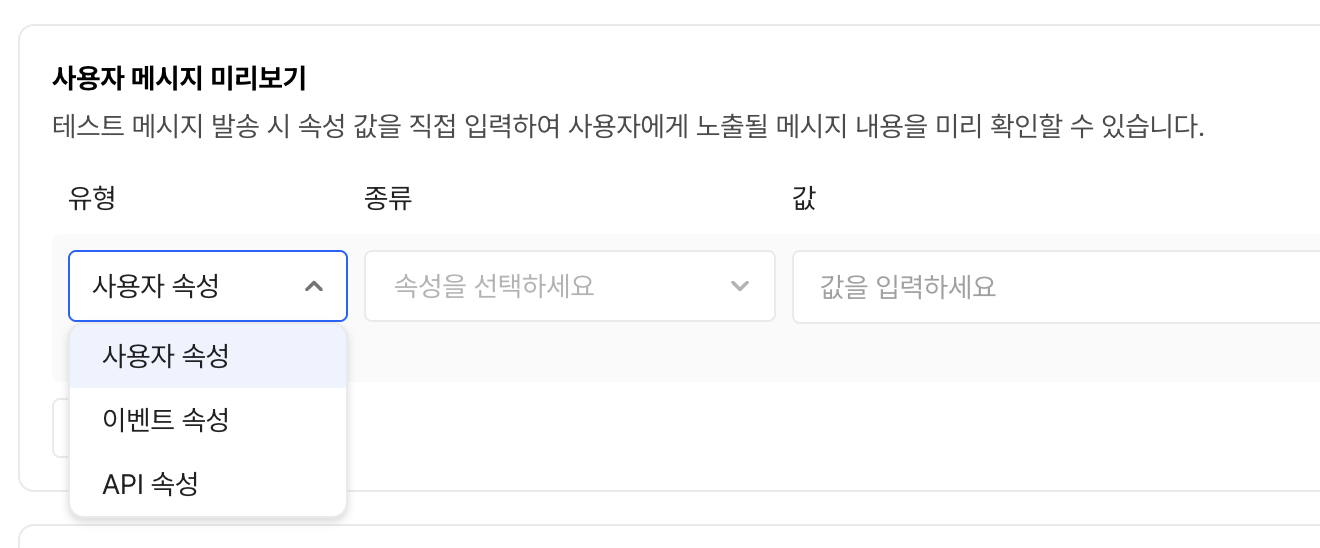
Review the personalized text set in the popup, and enter values in the **User Message Preview** below. You can immediately see the push message as it will actually appear on the device screen on the right.
#### 2-3. Image
You can add an image to the push message to deliver more information to the user.
There may be slight differences depending on the presence of an image, the user device's notification status and display settings, and device size. Please refer to the image guidelines before uploading.
* File format: PNG, JPG, JPEG
* File size: 500KB
| | Recommended Ratio | Minimum Size (px) | Maximum Size (px) |
| ------------- | ----------------- | ----------------- | ----------------- |
| Android Icon | 1:1 | 48 x 48 | 256 x 256 |
| Android Image | 2:1 | 512 x 256 | 2048 x 1024 |
| iOS Image | 1:1 | 400 x 400 | 1038 x 1038 |
| iOS Image | 2:1 | 400 x 200 | 1038 x 519 |

#### 2-4. Notification Channel (Optional)
Using Hackle Push Messages, you can receive push notifications on a pre-declared channel within the Android app. If a push is received with a channel ID that does not exist in the app, the push will be received on the default channel provided by Hackle.
{% hint style="info" %}
For more information about notification channels, please refer to the [Android guide](https://developer.android.com/develop/ui/views/notifications/channels?hl=ko).
{% endhint %}
{% endstep %}
{% step %}
### Set Target
After writing the message, set the send target.

* All Users
* Cohort
* You can target the campaign by specifying a cohort. Set up the desired cohort using various events/properties.
#### Detailed Conditions
You can configure detailed message sending settings based on the marketing subscription consent status of the send target.
{% endstep %}
{% step %}
### Campaign Review
You can check the summary information of the written campaign.
In addition to the message content, you can preview the number of users in the cohort set as the target. The meaning of the 'User Count' and 'Send Count' fields in the estimated information section is as follows:
* User Count: The number of users who satisfy the configured target conditions
* Example (based on the image below): Number of users whose mkt\_push\_agree property value is true (based on device Id)
* Send Count: Among users who satisfy the 'User Count' condition, the number estimated to be able to receive push messages because they have a push token (Push Token) value

#### Test Send
You can preview the configured message on the right side of the screen. If you want to receive a preview push message on an actual device, click the Test Send button.

In the test send popup, select the platform and enter the push token value of the device you want to receive the message on.

After entering the token value and clicking the send button, the push message is sent to the device corresponding to that token value, as shown below. Check not only the message content but also the action that occurs when you click. Test messages are sent **regardless** of the campaign's period and status.

When all preparations are complete, click the Send Settings button in the upper right corner of the screen to configure message sending.
{% hint style="info" %}
If you have applied personalization variables, you can set up the 'User Message Preview' before the test send to test the message with the personalization variables applied.
 {% endhint %}
{% endstep %}
{% endstepper %}
---
# Agent Instructions
This documentation is published with GitBook. GitBook is the documentation platform designed so that both humans and AI agents can read, navigate, and reason over technical content effectively. Learn more at gitbook.com.
## Querying This Documentation
If you need additional information that is not directly available in this page, you can query the documentation dynamically by asking a question.
Perform an HTTP GET request on the current page URL with the `ask` query parameter, and the optional `goal` query parameter:
```
GET https://docs.hackle.io/en/crm-marketing/push-message-guide/create-campaign.md?ask=&goal=
```
`ask` is the immediate question: it should be specific, self-contained, and written in natural language.
`goal` is optional and describes the broader end goal you are ultimately trying to accomplish on behalf of the user. GitBook uses it to tailor the answer towards what is most useful for that goal.
The response will contain a direct answer to the question and relevant excerpts and sources from the documentation.
Use this mechanism when the answer is not explicitly present in the current page, you need clarification or additional context, or you want to retrieve related documentation sections.
{% endhint %}
{% endstep %}
{% endstepper %}
---
# Agent Instructions
This documentation is published with GitBook. GitBook is the documentation platform designed so that both humans and AI agents can read, navigate, and reason over technical content effectively. Learn more at gitbook.com.
## Querying This Documentation
If you need additional information that is not directly available in this page, you can query the documentation dynamically by asking a question.
Perform an HTTP GET request on the current page URL with the `ask` query parameter, and the optional `goal` query parameter:
```
GET https://docs.hackle.io/en/crm-marketing/push-message-guide/create-campaign.md?ask=&goal=
```
`ask` is the immediate question: it should be specific, self-contained, and written in natural language.
`goal` is optional and describes the broader end goal you are ultimately trying to accomplish on behalf of the user. GitBook uses it to tailor the answer towards what is most useful for that goal.
The response will contain a direct answer to the question and relevant excerpts and sources from the documentation.
Use this mechanism when the answer is not explicitly present in the current page, you need clarification or additional context, or you want to retrieve related documentation sections.