> For the complete documentation index, see [llms.txt](https://docs.hackle.io/llms.txt). Markdown versions of documentation pages are available by appending `.md` to page URLs; this page is available as [Markdown](https://docs.hackle.io/en/crm-marketing/campaign-setting.md).
# Campaign Settings
You can configure default rules that apply commonly to all campaigns. The settings you configure are **applied at once to all CRM messages**, including campaigns that are currently running.
### Performance Measurement
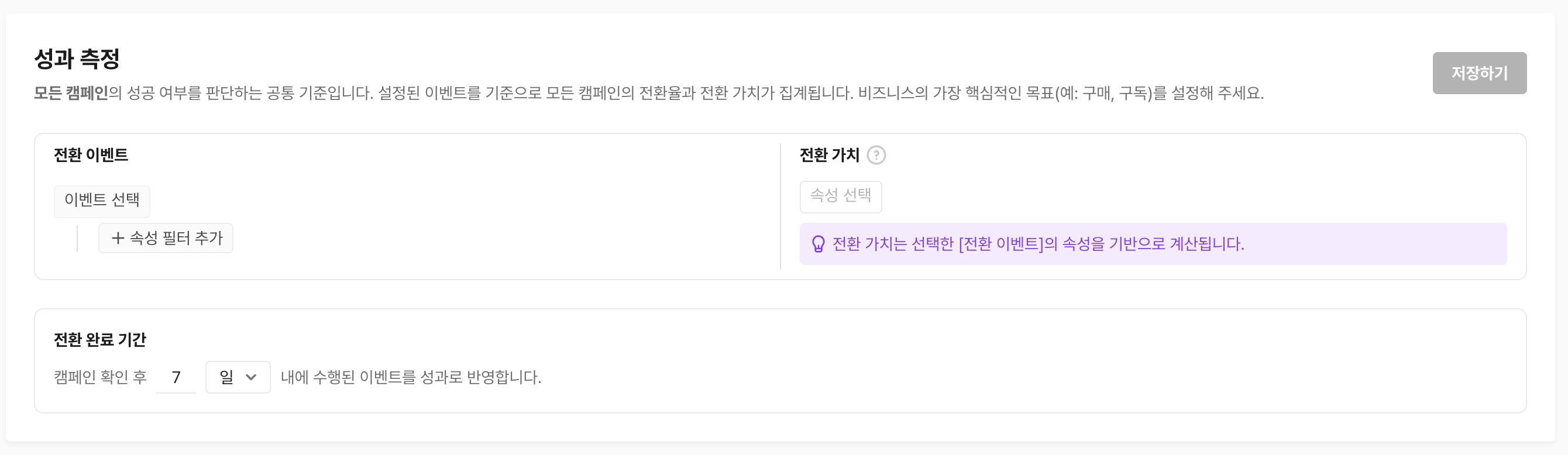
When running campaigns, it is important to look beyond simply how many messages were sent and confirm whether those messages actually led to your business goals. The performance measurement settings serve as a **common standard for judging the success of all campaigns**, and the values you set here are applied at once to all CRM messages, including campaigns that are currently running.
#### Conversion Event
Select the event that corresponds to your campaign's most essential goal (e.g., purchase, sign-up, coupon use). Since the conversion rate of all campaigns is aggregated based on the selected event, it is best to designate the user action that your campaign ultimately aims to drive. You can also add a property filter to narrow it down so that only events meeting specific conditions are recognized as conversions.
#### Conversion Value
If you also want to aggregate the value generated when a conversion occurs, set a conversion value. The conversion value is calculated based on a property of the selected conversion event. For example, if you set the conversion event to purchase and designate the payment amount property as the conversion value, you can even see the revenue scale generated by each campaign.
#### Conversion Window
This value determines whether only events performed within a certain period after the user viewed the campaign are reflected as performance (default: 7 days). For example, if you set it to 7 days, only conversion events that occur within 7 days after the campaign is viewed are aggregated as that campaign's performance. For products that take a long time to decide to purchase, increase the period; if you want to measure immediate reactions, set it short.
#### **Example**
For example, if you run a remind campaign targeting customers who abandoned their cart, it is appropriate to set the conversion event to `purchase`. If you designate the payment amount property as the conversion value and set the conversion window to 3 days, you can aggregate only the purchases and revenue that occur within a short period after the message is viewed. With this setup, you can compare campaign performance based on actual revenue contribution rather than simple click counts.
***
### Frequency Capping
When running multiple campaigns simultaneously, it is important to ensure that your messages are not perceived as spam by users or do not interfere with the user experience. By setting frequency capping, you can run campaigns effectively without sending excessive messages to your recipients.
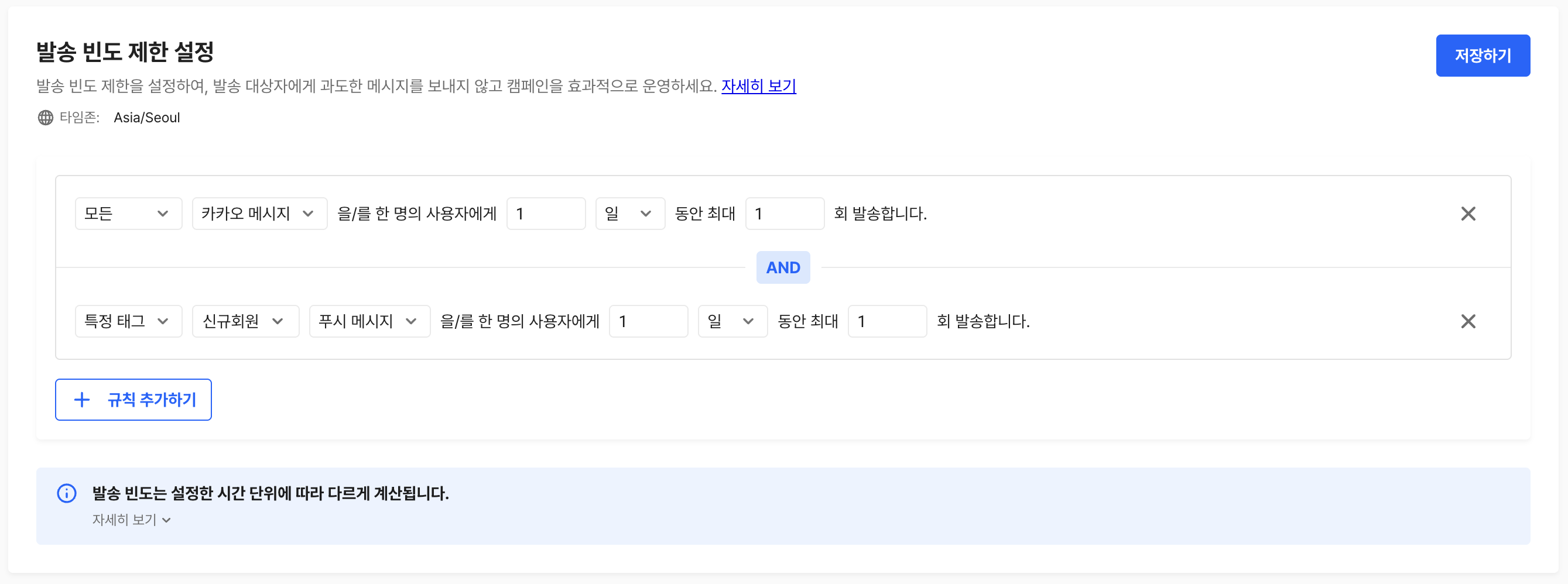
Currently, Hackle lets you configure a combination of the following two conditions, and each frequency capping setting is connected by the `AND` operator per condition. (\*Can be set in units of minutes, hours, days, weeks, or months, up to a maximum of 30 days.)
1. Total frequency capping
2. Specific tag frequency capping (message tag)

Before starting a campaign, you can check the frequency capping details as a Tooltip on the send settings page.
#### Tag-based Frequency Capping Rule Details
1. Tag-based frequency capping rules are calculated when a message is sent.
2. Tag-based frequency capping only targets tags in currently running campaigns that the user has previously received.
3. If you send a push message with a tag set in the frequency capping, then remove the tag and send the push message again, that push message is not included in the frequency capping.
{% hint style="warning" %}
However, if a tag was later added to a message the user received, and that added tag was added before the most recently sent message, it is included in the frequency capping calculation.
{% endhint %}
#### Case Example
Take a look at how messages are sent in the following case.
1. **Campaigns**
1. Campaign A: Scheduled to be sent Monday at 9 AM. / Using the `promotion` tag
2. Campaign B: Scheduled to be sent Tuesday at 9 AM. / Using the `promotion` tag
2. **Configured frequency capping rule**
1. Send {specific tag - promotion} push messages to a single user a maximum of {1} time over {1 week}
| If | Calculation | 📌 Final Result |
| -------------------------------------------------------------------------------------------------------------------------------------------------------------- | --------------------------------------------------------------------------------------- | -------------------------------------------------------------- |
| The `promotion` tag was removed from Campaign A after the user received the message, but before Campaign B sends its message... | The `promotion` tag of Campaign A is not included in the frequency capping calculation. | **The customer will receive the Campaign B push message.** |
| The `promotion` tag was accidentally deleted from Campaign A after the user received the message, but it was re-added on Tuesday before Campaign B was sent... | The `promotion` tag of Campaign A is included in the frequency capping calculation. | **The customer will not receive the Campaign B push message.** |
#### Rule and Condition Composition
Frequency capping rules are composed of AND conditions per condition, and you can add up to 10.
An AND condition must satisfy both operands. Therefore, if you configure the rules as follows, the user can receive only 1 push message with the `promotion` tag in that week.

{% hint style="info" %}
**Rules**
1. Send {all} push messages to a single user a maximum of {1} time over {1 week}
2. Send {specific tag - promotion} push messages to a single user a maximum of {5} times over {1 week}
**Result**
**The user can receive only 1 push message with {specific tag - promotion} in that week.**
{% endhint %}
***
### Send Exclusion Targets
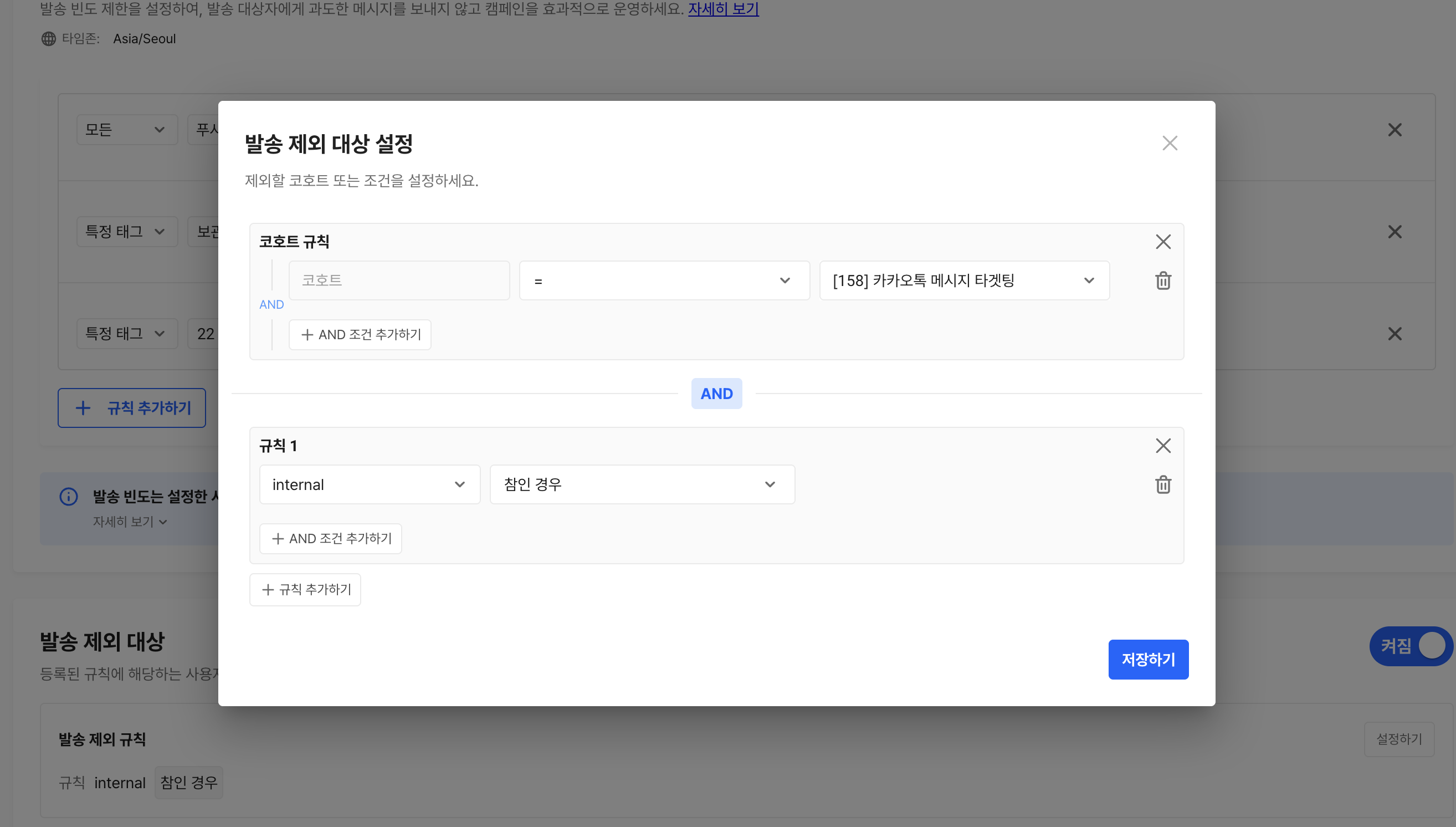
There are cases where you need to filter users out in advance so that no campaign is sent to those who meet certain conditions (e.g., users who have already been processed as churned, VIP-only segments, internal test accounts). Using the send exclusion target settings, you can **exclude users matching the registered rules from the campaign send audience across all channels at once**.
If frequency capping is a setting that controls "how often to send," send exclusion targets is a setting that determines **"who not to send to."** The two settings operate independently of each other, and users included in the exclusion targets are removed from the send audience from the start, regardless of the frequency capping calculation.
**Rule Composition**
You can add the users or conditions you want to exclude as rules. If no value is set, messages are sent to all targets without any exclusion; when you add a rule, users satisfying that rule are excluded from the send audience across all channels (push, Kakao, text, etc.).
After configuring the rules, you must click the toggle button in the top right to change the state. The toggle must be enabled for the send exclusion target settings to be reflected in the actual campaign audience calculation.
**Scope of Application**
Send exclusion targets is a common setting at the Workspace level; it does not apply to only a specific campaign but applies equally to all CRM campaigns in operation. Therefore, when adding or modifying rules, it is best to also consider the impact on other campaigns.
In practice, it is important not to define the exclusion rules too broadly. For example, register only clear criteria first — such as internal test accounts or users in a specific operational state — and, before starting the campaign, check that the actual send audience does not shrink excessively.
---
# Agent Instructions
This documentation is published with GitBook. GitBook is the documentation platform designed so that both humans and AI agents can read, navigate, and reason over technical content effectively. Learn more at gitbook.com.
## Querying This Documentation
If you need additional information that is not directly available in this page, you can query the documentation by asking a question.
Perform an HTTP GET request on the following URL with the `ask` and `goal` query parameters:
```
GET https://docs.hackle.io/en/crm-marketing/campaign-setting.md?ask=&goal=
```
`ask` is the immediate question: it should be specific, self-contained, and written in natural language.
`goal` is what the user is ultimately trying to achieve, the reason they need the answer. Sharing it helps GitBook give you a better, more relevant answer. A goal is most helpful when it describes the outcome the user wants rather than restating the question. For example, with `ask=how do I create an API token`, a goal like `automate deployments from our CI pipeline` lets GitBook tailor the answer to that use case.
The response will contain a direct answer to the question and relevant excerpts and sources from the documentation.
Use this mechanism when the answer is not explicitly present in the current page, you need clarification or additional context, or you want to retrieve related documentation sections.